Run in sandbox
Applies to client 2.0.x and later. For tenant admins.
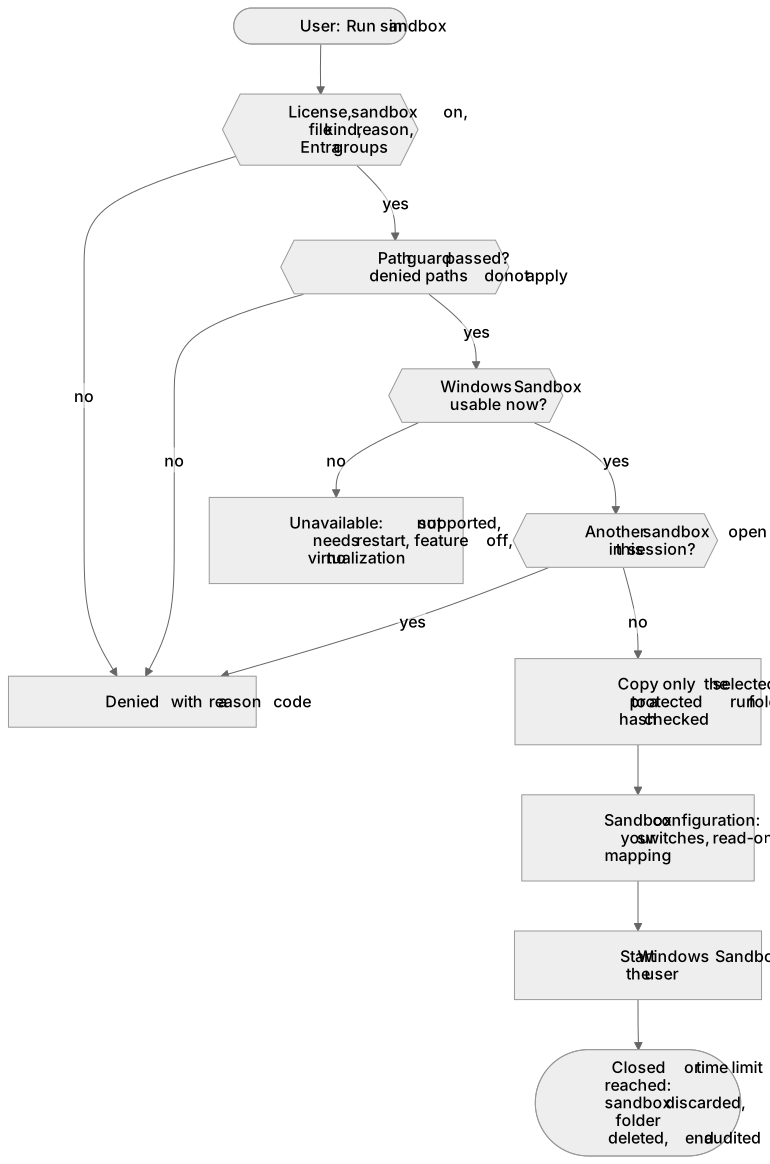
Run in sandbox starts an .exe, .msi or .ps1 inside Windows Sandbox: a disposable virtual machine that is wiped when it closes. The program never gets administrator rights on the device itself, and the device’s files are not reachable from inside. It is useful for trying an unknown installer or a downloaded tool.
Requirements
Section titled “Requirements”- Windows 10 or 11 Pro, Enterprise or Education (not Home), with hardware virtualization.
- The Windows feature Windows Sandbox (
Containers-DisposableClientVM). With Manage the Windows feature on the device on (the default), the device turns it on when you allow Run in sandbox and off again when you stop, and needs one restart. The device never restarts by itself. A Windows Sandbox that an administrator turned on is never turned off by AdminExplorer. - The device’s capability is shown on its page under Windows Sandbox (available, feature off, needs restart, not supported).
What the user sees
Section titled “What the user sees”When allowed, a Run in sandbox entry appears next to Run with AdminExplorer in the right-click menu for the allowed file kinds, and Run a program in the sandbox… in the tray menu. With Offer “Run in sandbox instead” when an elevation is denied, the denial message offers it as a button. The tray status shows “Sandbox: available”, “needs restart”, “not supported” or “off by policy”.
Switches
Section titled “Switches”| Setting | Default | Notes |
|---|---|---|
| Allow “Run in sandbox” | off | The master switch |
| Offer “Run in sandbox instead” | off | After a denied elevation |
| Networking | off | Inside the sandbox |
| Clipboard | off | Between the sandbox and the desktop |
| Virtual GPU, microphone, camera, printers | off | |
| Time limit | 120 minutes | 0 = no limit, at most 1440; the sandbox is closed when reached |
| File kinds | exe, msi, ps1 | At least one |
| Users must type a reason | on | Uses your minimum reason length |
| Limit to Entra groups | everyone | Enterprise, with group targeting on |
| Manage the Windows feature | on | Off leaves the feature as it is |
| Map the whole folder of the program | off | A read-only copy; see below. Every file in that folder becomes readable inside the sandbox |
Networking and clipboard let a program in the sandbox reach your network or exchange data with the desktop; keep them off unless needed.
{ "enabled": true, "offerWhenDenied": true, "networking": false, "clipboard": false, "vGpu": false, "audioInput": false, "videoInput": false, "printerRedirection": false, "maxMinutes": 60, "kinds": ["exe", "msi"], "requireReason": true, "assignedGroups": [], "manageFeature": true, "mapFolder": false}How a run is protected
Section titled “How a run is protected”- The same path guard as for elevation applies (local fixed drive, no links, no network paths). Denied paths do not apply: untrusted downloads are what the sandbox is for.
- By default only the selected file is copied into a protected run folder; the copy is hashed and must match the checked file. The sandbox sees that folder read-only.
- With Map the whole folder of the program the file’s whole folder (files and subfolders) is copied into the same protected run folder when the sandbox starts, read as the user, and the sandbox sees that copy read-only; the user’s own folder is never connected to the sandbox. Installers with files next to them work. The device refuses the folder when it is the root of a drive; when it is, lies in or contains the Windows, Program Files or AdminExplorer data folders; when anything below it is a junction, a symbolic link or a OneDrive Files On-Demand (cloud) placeholder; when a file or folder below it cannot be read by the user; or when it holds more than 10,000 files and folders or more than 2 GB. Nothing is skipped silently: the message names the entry that stopped the run. For cloud placeholders, make the folder available offline (Always keep on this device) or copy the files to a local folder first. Changes to the original folder after the start are not seen in the sandbox, and the copy is deleted when the sandbox closes.
- Windows Sandbox runs as the user, never as an administrator on the device. One sandbox per session; at most 6 requests per minute.
- While Run in sandbox is allowed, AdminExplorer also writes the Windows Sandbox policy values for your switches, so a sandbox the user opens by hand gets the same restrictions. Values set by Group Policy are left alone.
- Every run is audited with kind “sandbox”, the switches in force, the duration and the hash; a whole-folder run also records the folder that was copied.
Limits
Section titled “Limits”- Not on Home editions; needs virtualization and the feature (one restart).
- One sandbox at a time per session, including one the user opened outside AdminExplorer.
- Nothing persists: closing the sandbox discards everything.
- Without Map the whole folder of the program, only the selected file is copied in, and installers that need files next to them (an
.msiwith external cabinet files, asetup.exewith a payload folder) do not work. Turning it on exposes every file in that folder to the program in the sandbox (read-only): a program run from Downloads can read everything else in Downloads. - A user who is not in the assigned groups can still start Windows Sandbox by hand once the feature is on (with your restrictions, but without reason, audit or time limit). Block
WindowsSandbox.exewith App Control if that matters. - On a Standard license, group scoping is not available; if a stored group list remains after a drop to Standard, devices get the sandbox turned off.
Related guides
Section titled “Related guides”AdminExplorer documentation, published by Circle of Bytes ApS. Customers sign in at portal.adminexplorer.circleofbytes.com. Privacy